Hi there,
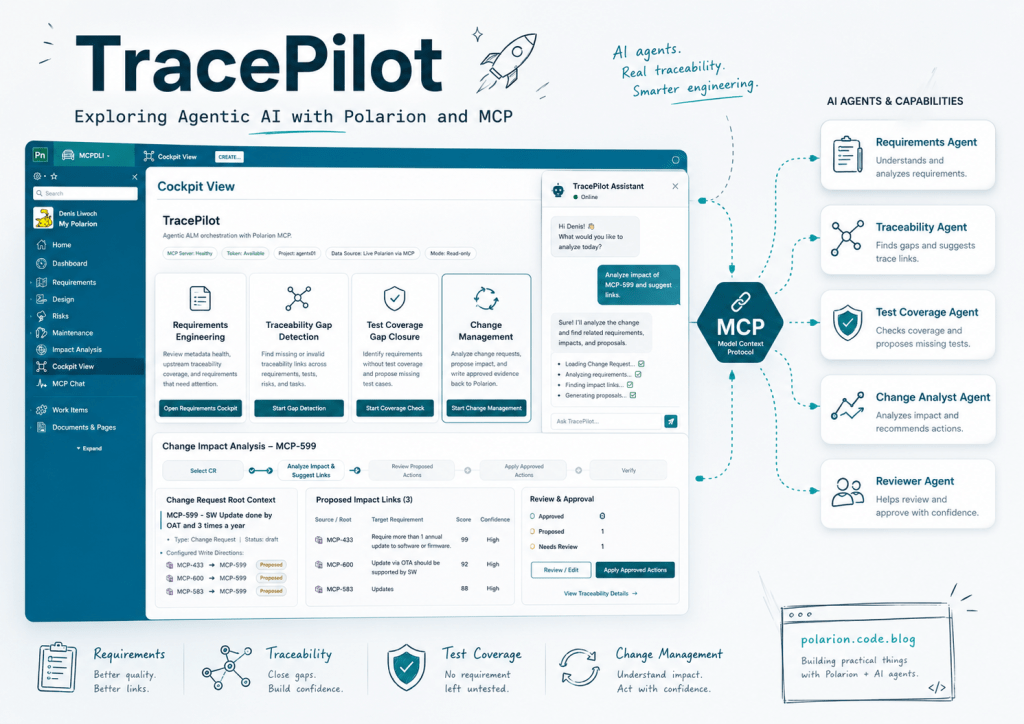
during the last weeks I spent quite some time experimenting with Polarion, MCP and AI Agents.
There was no big product plan at the beginning.
I was simply curious:
What can we actually achieve when an AI Agent gets access to Polarion through an MCP server?
Not only access to a few exported Requirements.
I wanted the Agent to work with real Polarion projects, Work Items, links, fields and project-specific configurations.
And once the first connection was working, the next question appeared almost automatically:
What happens when we do not use only one general AI assistant, but several specialised Engineering Agents?
That was the starting point for TracePilot.
TracePilot is my current experiment around agentic engineering workflows inside Polarion.
It is still under development, but the first Use Cases already show quite nicely what can become possible when Polarion provides the engineering context and Agents use this context to analyse and support the user.
Let us take a look.
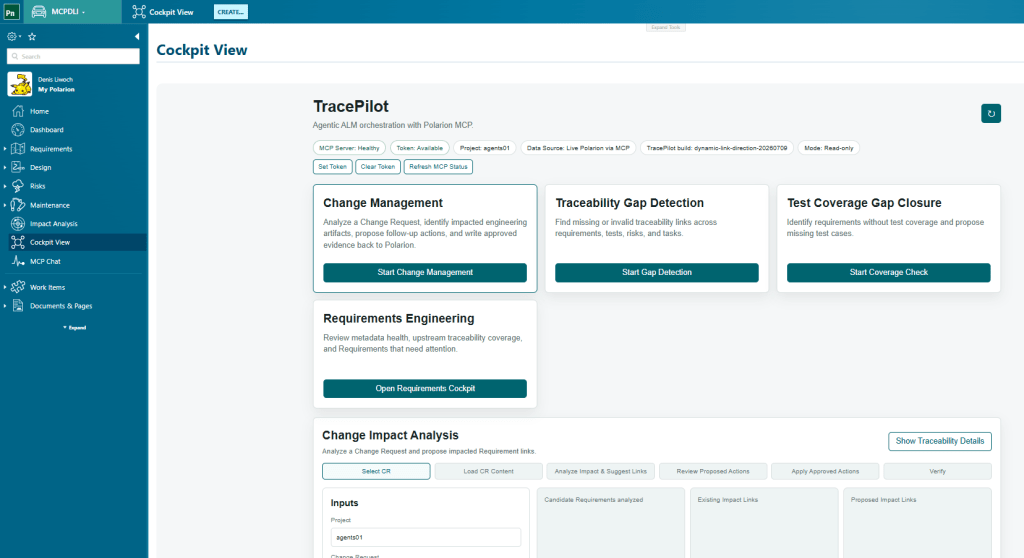
What you can see here is the current TracePilot Cockpit integrated directly into Polarion.
At the moment, the cockpit contains several different Use Cases:
- Change Management
- Traceability Gap Detection
- Test Coverage Gap Closure
- Requirements Engineering
The idea is not to replace Polarion.
The idea is to use everything Polarion already knows about the engineering project and make this information available to specialised Agents.
A closer look at Change Management
One of the most interesting TracePilot use cases for me is currently Change Management.
The reason is quite simple: a Change Request is usually not an isolated item. Once a change is introduced, the next question is always:
Which engineering artefacts are actually impacted by it?
This is exactly where TracePilot tries to help.
Instead of manually browsing through Requirements and guessing possible relationships, the idea is that the agent analyses the Change Request, looks for relevant candidates and then proposes impact links in a controlled way.
Step 1: Start with the Change Request
In the example below, I selected the Change Request MCP-599 – SW Update done by OAT and 3 times a year.
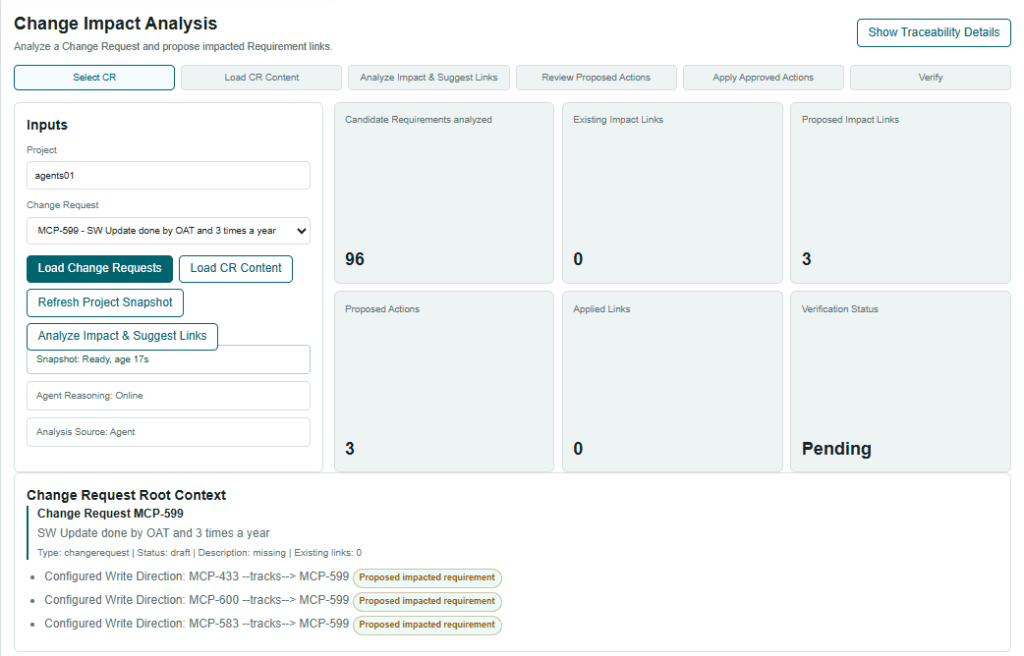
The cockpit shows the complete flow directly in Polarion:
- Select the Change Request
- Load the content
- Analyse impact and suggest links
- Review proposed actions
- Apply approved actions
- Verify the result
What I like here is that the user is guided through the process.
It is not just a chat answer. It is already a small workflow.
In this example, TracePilot analysed 96 candidate Requirements and proposed 3 impact links.
That already gives a nice impression of what is happening in the background: the agent does not stop at the selected Work Item, but inspects a wider project context before making suggestions.
Step 2: Show the proposed impact links
After the analysis, TracePilot presents the detected candidates together with reasoning and confidence.
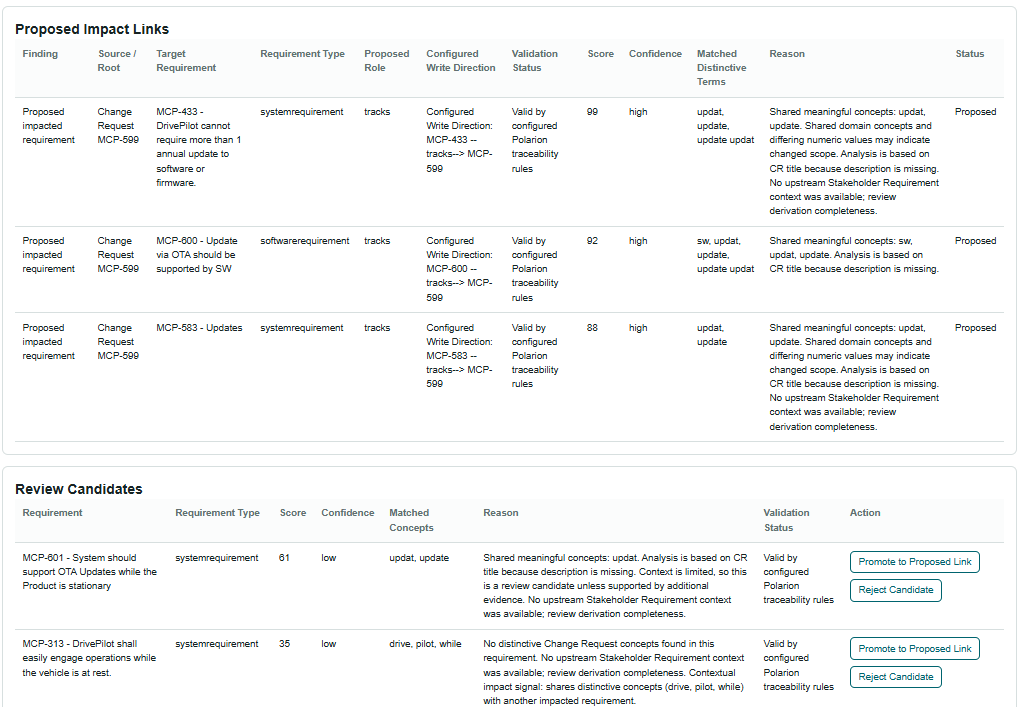
This is an important part for me.
I did not want the system to simply say:
“Here are three links, trust me.”
Instead, the result is shown with additional context, for example:
- the target Requirement
- the Requirement type
- the proposed role
- the configured write direction
- the validation status
- a score and confidence
- matched terms
- and a short explanation why this candidate was selected
In this example, the agent proposed impact links from the Change Request to:
- MCP-433
- MCP-600
- MCP-583
It also listed further review candidates, which were not strong enough to be proposed directly, but could still be promoted by the user if needed.
I think this is a nice balance.
The agent can help, but it still leaves room for human judgement.
Step 3: Review before anything is written
The next step is the review of the proposed actions.
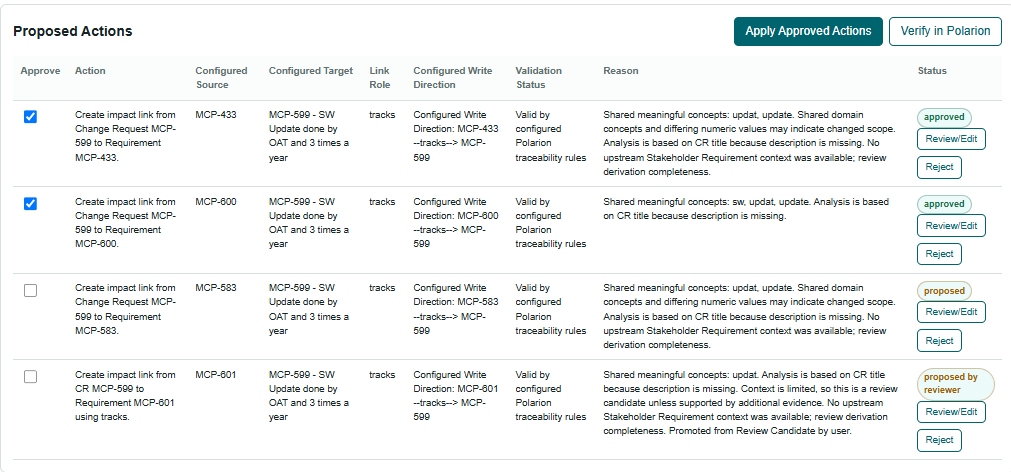
This is probably the most important part of the whole flow.
Even if the agent has a good confidence, the link is still not written automatically.
The user can first review the proposal and decide what should happen next.
For each proposed action, TracePilot shows:
- what should be created
- source and target
- the configured link role
- the write direction
- the validation result
- and the reason behind the suggestion
Then the user can:
- approve it,
- review or edit it again,
- or reject it.
So the process stays very transparent.
This was one of the main ideas behind TracePilot from the beginning:
the agent can analyse and recommend, but Polarion stays in control.
Step 4: Verify the result in Polarion
Once the approved actions are applied, the result can be verified directly in Polarion.
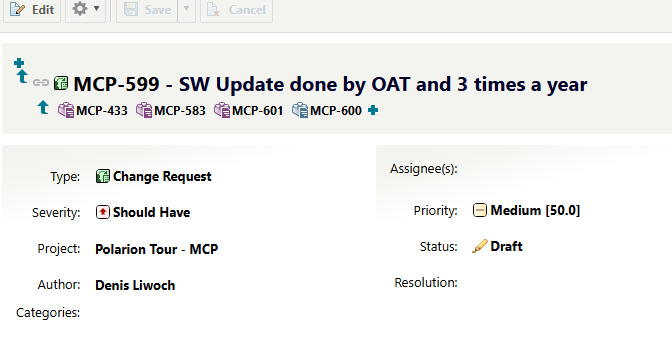
Here the Change Request shows the linked impacted Requirements directly on the Work Item.
That is the part I personally find the coolest:
the full loop starts inside Polarion, runs through the TracePilot analysis and then ends again in Polarion with a visible and verifiable result.
So in a very compact way, the workflow becomes:
The user selects a Change Request directly inside Polarion. TracePilot analyses the surrounding project context through MCP, searches for potentially impacted Requirements and prepares proposed links. These proposals are then reviewed by the user and are only written back after explicit approval. The result can finally be verified again in Polarion.
Or even shorter:
Select the CR → Analyze impacted artefacts → Review proposed links → Approve selected actions → Verify the result in Polarion
Why I like this use case
For me, this example shows quite nicely what I wanted to explore with TracePilot.
The goal was not just to put a chatbot next to Polarion.
The more interesting question was:
What becomes possible if an agent can work with real Polarion context and support an engineering workflow directly inside the tool?
The Change Management example gives one possible answer:
- it reduces manual investigation,
- it makes impact analysis easier to review,
- it keeps the user in control,
- and it still ends with a normal Polarion result.
One More Thing!
From a question to real Polarion data
The easiest way to explain the current setup is probably to show it.
In the following example, I am working inside a real Polarion project and simply start with a question.
The workflow starts with a simple question directly inside Polarion. The user does not need to switch to another tool or prepare an export first. TracePilot uses the MCP connection to access the active Polarion project and analyse the relevant Work Items, fields and links.
Based on this information, the Agent prepares a result. This could be a list of matching Work Items, a detected traceability gap or even a proposed new Requirement together with the correct link.
The important part is that the Agent does not immediately change the project. The proposed action is shown to the user first and can be reviewed, edited or rejected. Only after the user approves the proposal does TracePilot write the change back to Polarion.
This creates a simple but controlled workflow:
Ask inside Polarion → Analyse the live project → Prepare a proposal → Review and approve → Write back to Polarion
Hope you enjoyed this post – please check out all other posts we have.

